ChatGPT images to Word
Export ChatGPT images to Word
Short answer
You can export ChatGPT images to Word by saving images manually, taking screenshots, copying the surrounding text, using browser print, assembling the material in Word, or exporting supported ChatGPT content into a structured DOCX document. Simple methods can work for one image or a quick visual reference. When the conversation includes screenshots, generated images, visual examples or mixed text+image material, the harder problem is keeping the image near the prompt, answer or explanation that gives it meaning. PhiRM helps export supported ChatGPT conversations into readable DOCX and PDF documents, including supported image/visual content where supported.
Problem
Some ChatGPT conversations contain images, screenshots, generated images, visual examples or image-like content together with prompts and answers. The visual material may explain an idea, support a comparison, show an example, document a result or make a longer answer easier to review.
The problem starts when the user moves the conversation into Word. If only the text is copied, the visual context disappears. If images are saved separately, the link between the image and the prompt or explanation can become messy. If screenshots are used, the result may be readable but hard to edit or organize.
For image-heavy ChatGPT work, the goal is not just to collect files. The goal is to keep supported visual content and surrounding conversation text together in a readable document.
What ChatGPT images and visual content look like in a document
In a ChatGPT conversation, visual content may appear as generated images, uploaded images discussed in the conversation, screenshots, visual examples, diagrams, image-like previews or mixed text+image sections.
In a Word document, that material needs context. An image without the prompt may be hard to understand. A screenshot without the explanation may be only a visual fragment. A generated image without surrounding notes may lose why it was created or how it should be reviewed.
A useful document keeps the supported image or visual content near the surrounding prompts, answers, captions, explanations or decisions where supported. That is different from saving image files into a folder and trying to reconstruct the conversation later.
Why image context can be lost when moving ChatGPT content to Word
Image context is fragile because it depends on proximity. The visual material may only make sense next to the exact prompt, follow-up answer, critique or decision that surrounds it. When the image is separated from that text, the document can become harder to use.
Manual workflows also create cleanup work. The user may need to save images one by one, paste them into Word, resize them, add captions and reattach the relevant conversation text. With a few images, that can be manageable. With a longer visual conversation, it can become slow and error-prone.
Text-only copy is sometimes not enough because it preserves words but not the visual evidence or example that the words refer to.
Practical ways to export ChatGPT images to Word
| Method | When it is enough | Where it fails |
|---|---|---|
| Save image manually | One image is all that matters | Separates image from prompt and answer context |
| Take screenshot | Small visual reference or quick proof | Not editable, searchable or clean for longer documents |
| Copy text only | Visual material is not important | Loses the image context completely |
| Browser print / PDF | Quick read-only capture is enough | May preserve browser layout rather than clean document structure |
| Manual Word assembly | Few images and short explanation | Slow when text and images must stay in sequence |
| Structured DOCX/PDF export | Mixed text+image conversation needs review or handoff | Results depend on source content and supported features |
When manual image saving, screenshot or copy-paste is enough
Manual methods are enough when the visual content is small, simple and low-risk. If the user only needs one image, saving it manually may be fastest. If the image is only a quick reference, a screenshot may be enough. If the image does not matter, copying the text may be sufficient.
Manual Word assembly can also work when there are only a few visual elements. The user can paste the text, insert images, add captions and clean the layout.
The practical test is whether the final Word document still makes sense without too much reconstruction.
When structured export is better
Structured export is better when the conversation contains multiple images, screenshots, generated images, visual examples or mixed text+image sections that need to stay understandable together.
It is also better when the document will be reviewed by another person, included in project documentation, used in teaching material, shared with a client or saved for later reference. In those cases, the surrounding prompt and answer context matters as much as the image itself.
A structured document can reduce manual assembly work and keep supported visual content near the supported conversation text where supported.
How PhiRM helps
PhiRM helps export supported ChatGPT conversations into readable DOCX and PDF documents. For this page, the value is visual context: supported image or visual content can be easier to review when kept with the surrounding prompts and answers in document form.
PhiRM helps preserve the text of the supported ChatGPT conversation, including supported image/visual content where supported. PhiRM does not rewrite, summarize or intentionally change the text of the supported conversation.
PhiRM is an independent workflow for supported ChatGPT conversation export. Results depend on the source conversation and supported features. Manual review may still be appropriate before professional or client-facing use.
DOCX vs PDF for image-heavy ChatGPT answers
| Format | Use when | Why |
|---|---|---|
| DOCX | You need to edit, annotate, resize, caption or combine visual ChatGPT material with other work | Better for Word workflows and working documents |
| You need a stable read-only version for sharing, review or filing | Better when the layout should be opened consistently | |
| Both | You need editing now and stable sharing later | Useful for important visual conversations |
A practical rule: use DOCX when the image-heavy document still needs work; use PDF when the exported version should be stable.
Limitations / accuracy
PhiRM helps export supported ChatGPT conversations into readable DOCX and PDF documents. It does not guarantee export of every image, every generated image, every visual widget, every chart, every gallery or every media element.
PhiRM does not perform OCR, read or analyze images, verify image truth or accuracy, improve image quality, repair missing images, recreate broken images or extract hidden image metadata. It does not prove ownership, authorship, copyright status or licensing of images.
PhiRM is not affiliated with OpenAI or ChatGPT and is not an official ChatGPT export system. It does not capture hidden reasoning, export unsupported/private/hidden content, bypass ChatGPT restrictions or guarantee perfect preservation of every element.
Example or proof section
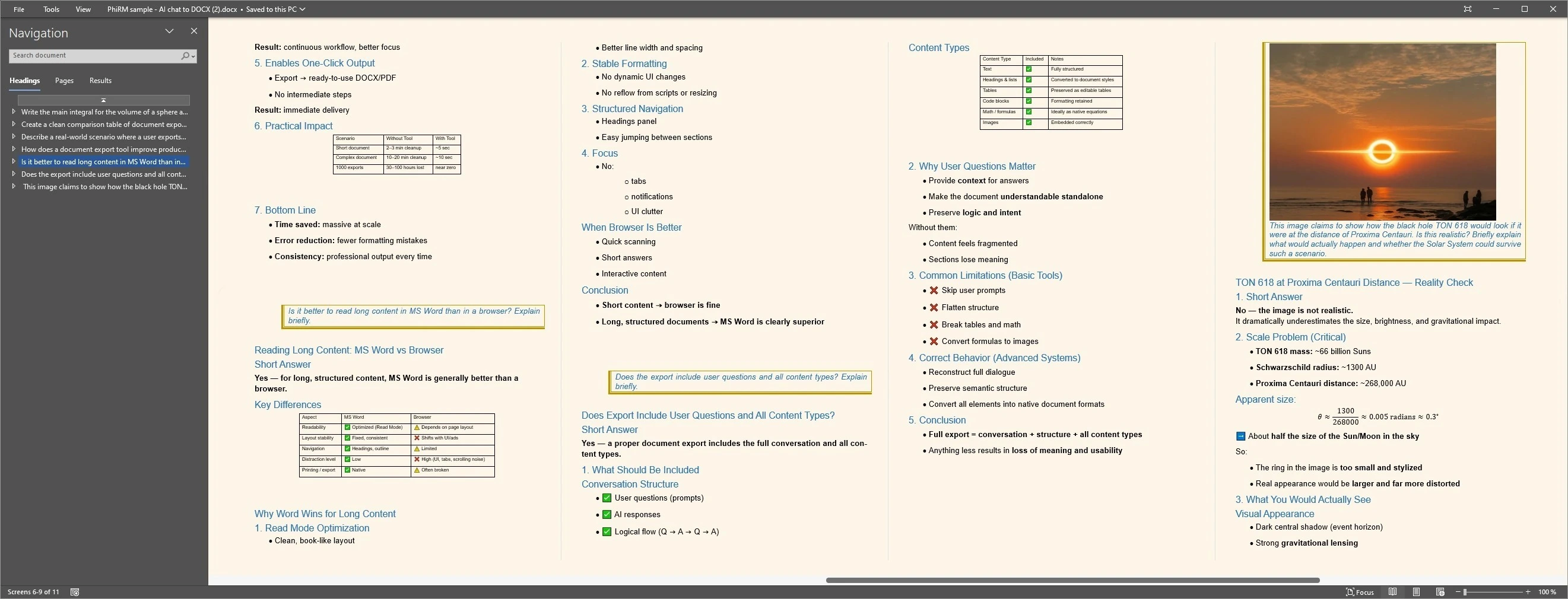
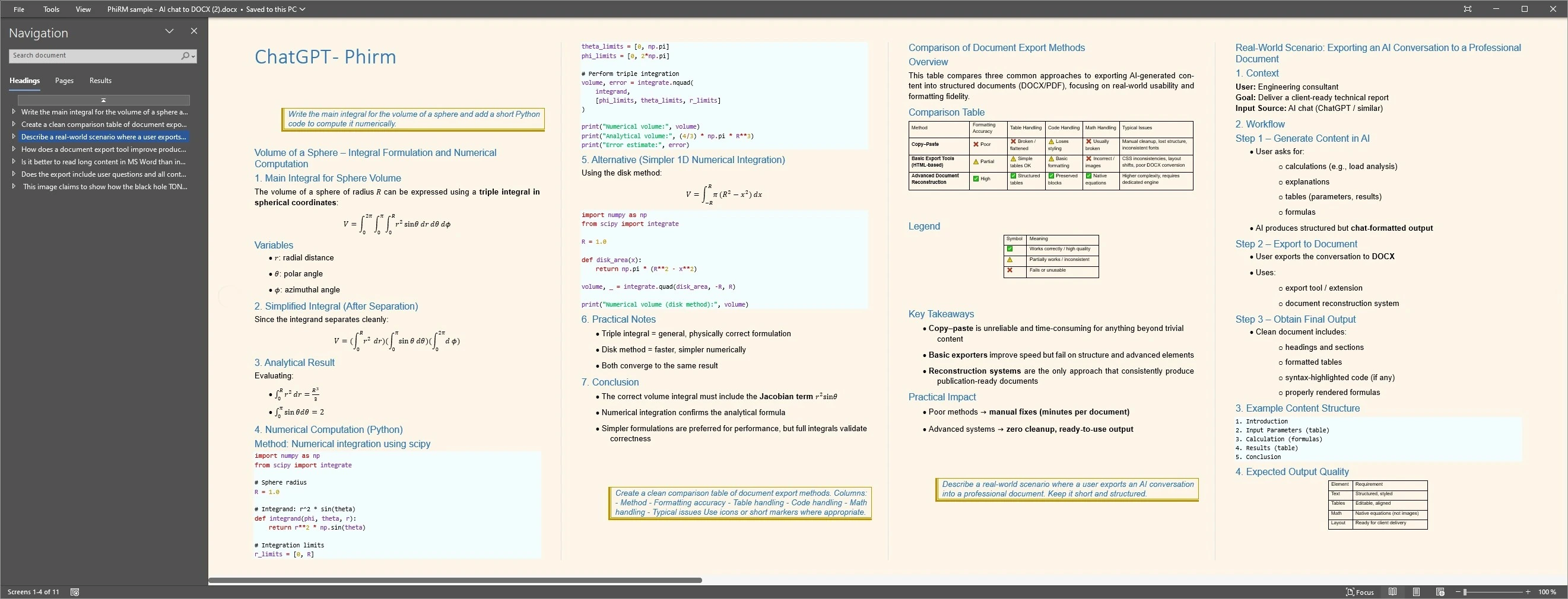
Imagine a consultant using ChatGPT to create visual examples for a client workshop. The conversation includes prompts, image outputs, follow-up critiques and short explanations about which visual direction works best. Saving only the images loses the reasoning around them. Copying only the text loses the visual examples.
Exporting a supported ChatGPT conversation as DOCX can keep supported visual content near the surrounding prompts and answers, making the context easier to review in Word. Results depend on source content and supported features; not every image, widget or media element is guaranteed to be preserved.
Structured document examples
FAQ
Can I export ChatGPT images to Word?
Yes. You can save images manually, take screenshots, copy the surrounding text, use browser print or use a document export workflow for supported ChatGPT conversations. The right method depends on how many images or visual examples are involved and whether the prompt and answer context needs to stay with them.
What counts as ChatGPT image or visual content?
It can include generated images, screenshots, uploaded images discussed in the conversation, diagrams, visual examples, image-like previews or mixed text+image material. In a document, the important issue is usually context: the image should remain understandable with the surrounding prompt, answer, caption or explanation where supported.
Does PhiRM guarantee that every image is exported?
No. PhiRM does not guarantee export of every image, generated image, widget, chart, gallery or media element. It helps export supported ChatGPT conversations into readable DOCX and PDF documents, including supported image/visual content where supported. Results depend on the source conversation and supported features.
Does PhiRM perform OCR or image analysis?
No. PhiRM should not be described as performing OCR, reading or analyzing images, verifying image accuracy, improving image quality, repairing missing images, recreating broken images or extracting hidden image metadata. Its role is document export for supported conversation content, not image interpretation or image repair.
Does PhiRM verify image ownership or copyright status?
No. PhiRM does not prove ownership, authorship, copyright status or licensing of images. It also does not verify whether image content is true, accurate or appropriate for a specific use. Manual review remains appropriate before professional, client-facing or published use.
Is PhiRM affiliated with OpenAI or ChatGPT?
No. PhiRM is an independent workflow for supported ChatGPT conversation export. It is not affiliated with OpenAI or ChatGPT and is not an official ChatGPT export system. It does not bypass ChatGPT restrictions, capture hidden reasoning or export unsupported/private/hidden content.
Export visual ChatGPT work into Word
When ChatGPT images, screenshots or visual examples need to stay readable with the surrounding conversation, PhiRM helps export supported chats into DOCX and PDF documents.