Document export
ChatGPT Tables to Word: export ChatGPT tables into Word documents
Short answer
When you copy a ChatGPT table into Word, the result often looks different from what you saw in the chat. Cells collapse, alignment shifts, and the table may need manual cleanup before it fits into a report or professional document.
PhiRM is an AI chat exporter that helps export supported ChatGPT conversations into Word or DOCX documents. PhiRM is designed to help preserve document structure, including tables, during export — treating table output as part of the document rather than something to paste and fix by hand.
If your table is going into a personal note or a quick draft, copy-paste may be enough. If the table is part of a working document — a report, a comparison, a plan, a client deliverable — a document-export approach can reduce the manual formatting work.
Why ChatGPT tables often break in Word
ChatGPT tables are often based on markdown-style structure and rendered for the chat interface, not for Word's native table model. When you copy that output and paste it into Word, the structure does not always transfer cleanly. What you get instead may be a block of text with pipe characters, misaligned rows, or a table that looked fine in the chat but needs cell-by-cell adjustment in Word.
The problem grows with the table:
- More rows and columns mean more to fix manually.
- Mixed content — text, numbers, wrapped cells, longer entries — makes alignment harder to recover.
- A document going to be shared, edited, or submitted looks worse when the table is rough.
- When this happens repeatedly — exporting tables from ChatGPT is part of your workflow, not a one-off — the cleanup time adds up.
A quick copy-paste is fast. The formatting work that follows it often is not.
Simple options that may be enough
Before choosing a tool, it is worth knowing when the simple approach holds up — and when it does not.
| Alternative | When it is enough | Where it fails |
|---|---|---|
| Copy-paste into Word | Short, simple table; internal use only; not shared. | Formatting breaks, alignment is lost, manual cleanup required. |
| Paste as plain text | When table structure does not matter at all. | Destroys the table — rows and columns are gone. |
| Manual table rebuild in Word | One critical table, one-time use. | Slow and repetitive when done regularly. |
| Browser print / PDF | Read-only sharing, visual distribution. | Not an editable Word document — breaks the editing workflow. |
| Simple markdown converter | Basic markdown table, no surrounding content. | Weak when the table is part of a longer document. |
When simple methods stop being enough
Copy-paste works well for short tables, personal notes, and situations where you just need the content — not the structure.
It becomes a problem when:
- The document is going to a client, a colleague, or a stakeholder who will read or edit it.
- The table needs to stay editable in Word, not just look right on screen.
- You are including the table in a longer document with consistent formatting throughout.
- The table is complex — a comparison matrix, a multi-column plan, a structured pricing overview.
- You export tables from ChatGPT regularly, and the cleanup is becoming part of the job itself.
At that point the question stops being "can I paste this?" and becomes "will it hold up in the actual document?"
How PhiRM helps with ChatGPT tables to Word
PhiRM is designed for document-grade export rather than clipboard workarounds. PhiRM is designed to help preserve table structure as part of the document export workflow — instead of relying on manual clipboard paste and repair.
PhiRM helps export supported ChatGPT conversations into cleaner Word/DOCX documents. PhiRM is useful when ChatGPT table output needs to become part of a working document rather than a block of copied text.
This does not mean every table will always export perfectly. Results can depend on the source content and which features are supported. But the approach is different from copy-paste: instead of moving the output through the clipboard, the export treats the document — tables included — as a whole.
How the table export workflow works
- Start with the ChatGPT conversation that contains the table you want to export.
- Decide whether simple copy-paste is enough for the table's complexity and the document's purpose.
- Use PhiRM when the table needs to be part of a cleaner Word document for professional or repeated use.
- Open the exported DOCX in Microsoft Word and review the result before sharing or submitting.
Who this is for and not for
This workflow is most relevant when you generate structured tables in ChatGPT regularly — comparisons, project plans, checklists, reports, pricing grids, proposals — and need them in a Word or DOCX document that will be shared, edited, or submitted.
It is also relevant for teams and companies when manual table cleanup is taking more time than it should, or when the document needs to look consistent and professional for review or external use.
It is less relevant when the table is short and going into a personal note or a rough draft, when the document does not need to be edited after the fact, or when a PDF or printed output is the actual end goal rather than an editable Word file.
Limitations and accuracy
PhiRM is designed to help with document export for supported ChatGPT content. Not every table will export identically to how it appears in the chat. Results depend on the source conversation, table complexity, and which content types are supported by PhiRM at the time of export.
For final business documents, client reports, or any submission where accuracy matters, reviewing the exported document before sending is still the right step. PhiRM can reduce the manual formatting work — it is not a substitute for checking the output.
Example: from ChatGPT comparison table to Word document
A consultant generates a five-option comparison table in ChatGPT: options in columns, criteria in rows, short notes in each cell. Copying it into Word produces a pipe-separated text block. Rebuilding the table by hand turns one export into manual document work.
When the same workflow repeats — different comparison, different report, same cleanup — the manual work becomes a recurring cost.
PhiRM is designed for situations like this: where the ChatGPT output is not the end of the work, but the beginning of a document someone will read, edit, or present.
Document workflow examples
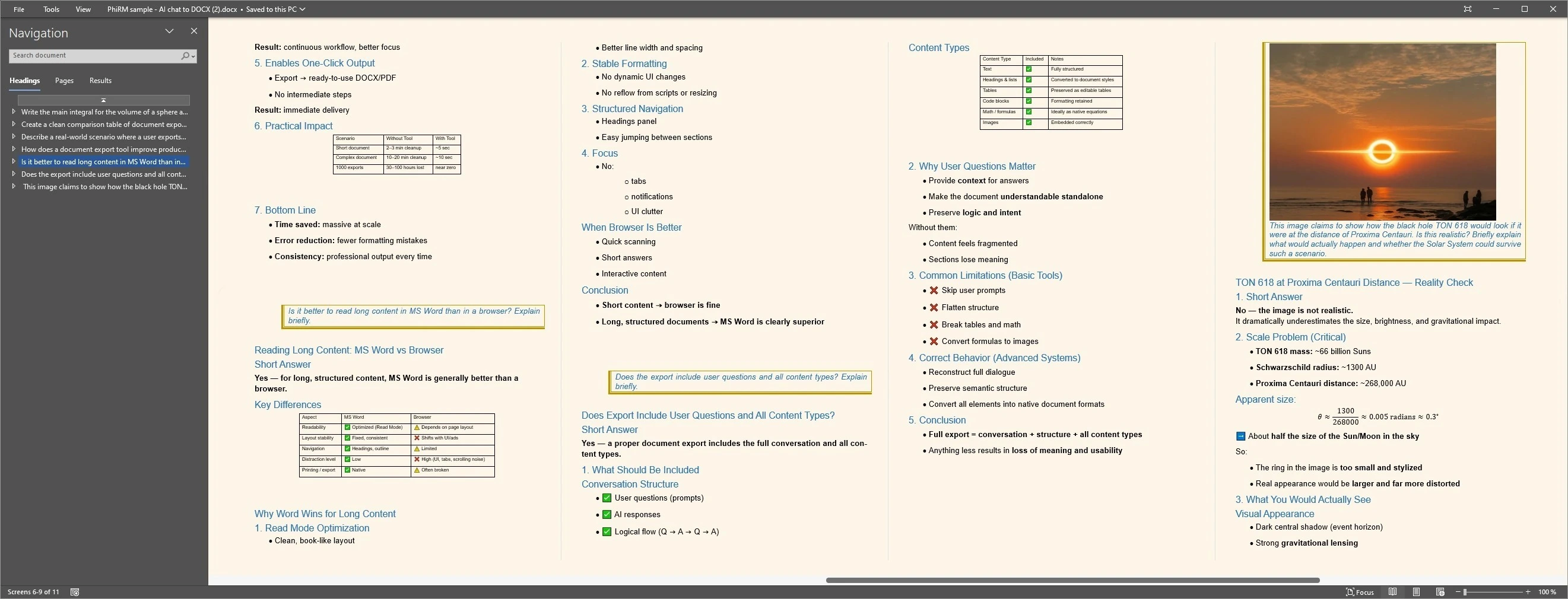
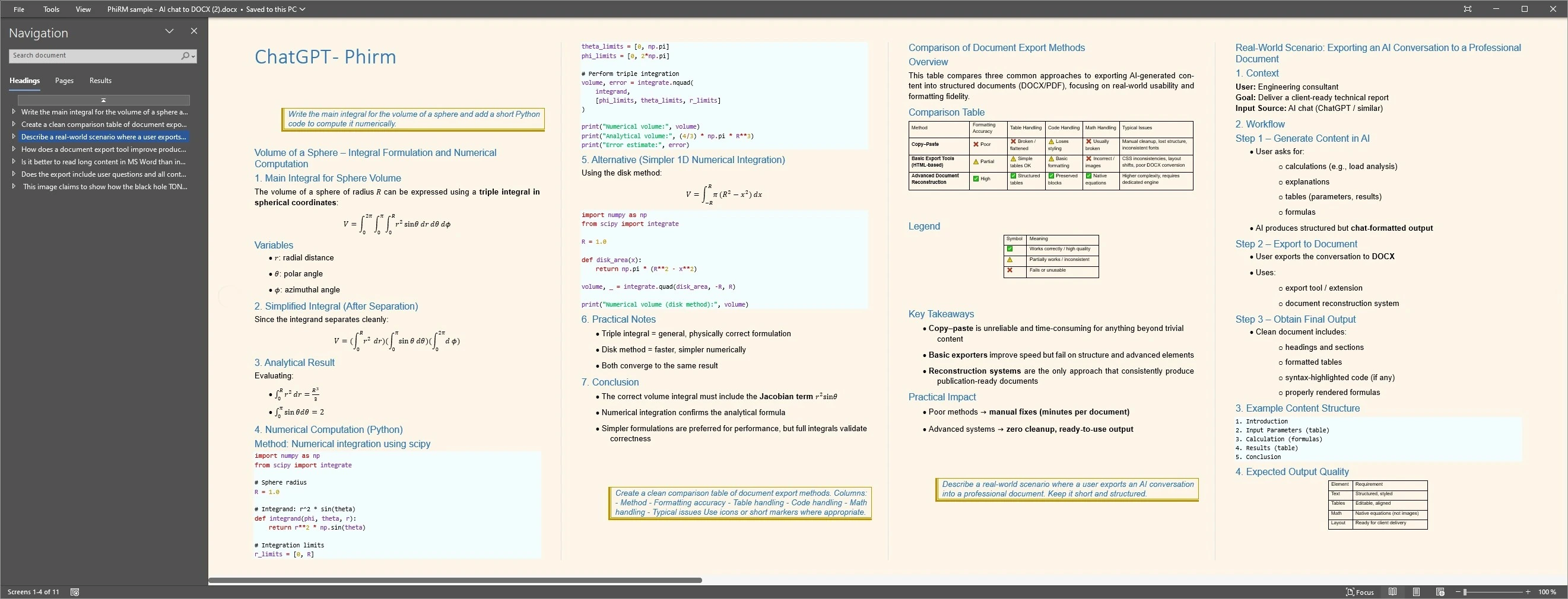
Why a document export approach can help with table formatting
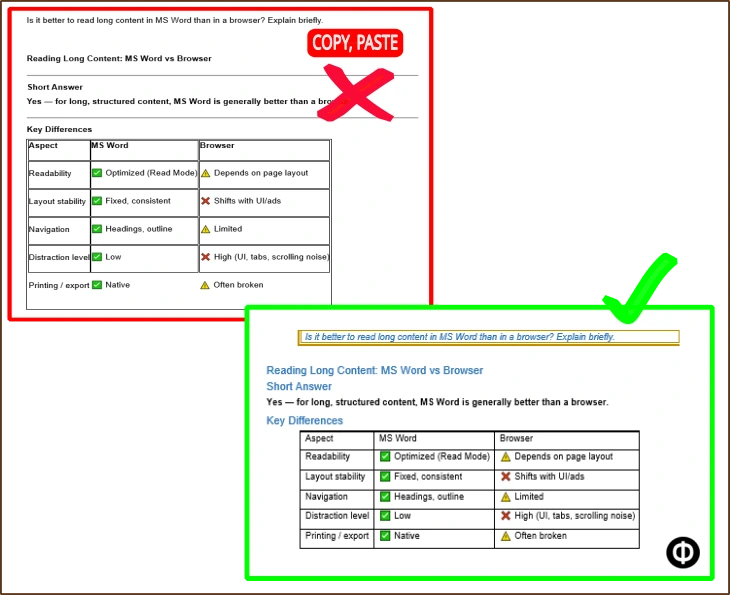
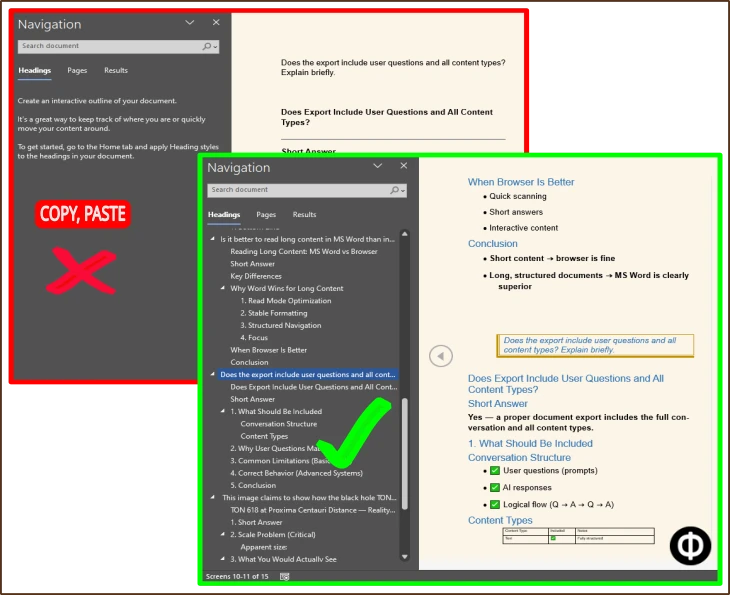
FAQ
Why does my ChatGPT table look bad in Word?
ChatGPT tables are often based on markdown-style structure and rendered for the chat interface, not for Word's native table model. When you copy and paste the output, Word may interpret it as plain text with pipe characters, or as a table that still needs alignment and cell adjustments. The result often requires manual work before the document is ready to use.
Can I export ChatGPT tables to Word without reformatting?
Copy-paste usually requires some reformatting. PhiRM is designed to help export supported ChatGPT conversations into Word or DOCX documents in a way that treats tables as part of the document structure. Results can vary depending on the source content and supported features, but the approach is intended to reduce the manual formatting work compared to clipboard paste.
Is copy-paste enough for ChatGPT tables?
For short tables going into personal notes or rough drafts, copy-paste may be sufficient. For tables in professional documents — reports, comparisons, client proposals, structured plans — copy-paste often requires cleanup that takes time and affects how the final document looks. Whether copy-paste is enough depends on where the document is going and how much formatting matters.
Does PhiRM work with tables?
PhiRM is designed to help preserve document structure, including tables, when exporting supported ChatGPT conversations to Word or DOCX. Results depend on the source content and which features are supported. Manual review is still recommended for final documents.
Can I edit the exported document in Microsoft Word?
Yes. PhiRM exports to DOCX format, which opens in Microsoft Word as a standard editable document. You can continue working in it — adjusting the table, adding content, formatting — the same way you would with any Word file.
Does PhiRM also export to PDF?
Yes. PhiRM supports DOCX and PDF export for supported AI conversations. Word/DOCX is usually better when you need an editable document, while PDF is better for read-only sharing or archiving. See the related guide on ChatGPT to PDF.
Ready to stop rebuilding tables by hand?
PhiRM is designed to help export supported ChatGPT conversations into cleaner Word documents. Try it and see whether it fits your workflow.