Document export
Gemini to Word: export Google Gemini output into Word documents
Short answer
Google Gemini can export responses to Google Docs, and you can copy Gemini output manually into Microsoft Word. For short answers, personal notes, or rough drafts, that may be all you need.
When the required output is a clean, editable Word or DOCX document — for a report, proposal, analysis, or shared document workflow — the path from Gemini to Word often involves extra steps or formatting work.
PhiRM is an AI chat exporter that helps export supported Google Gemini conversations into clean Word or DOCX documents, without relying on clipboard paste or a Google Docs intermediary step as the main workflow.
The Gemini to Word problem
Gemini works naturally within the Google ecosystem. Responses can be sent to Google Docs, and Google Docs can be downloaded as DOCX. That path works — but it is not a direct Gemini to Word export.
When you need a Microsoft Word document specifically, the workflow often becomes indirect:
- Copying Gemini output into Word manually can lose formatting, heading structure, and table alignment, depending on the content and how it was generated.
- Routing through Google Docs adds a step: Gemini → Google Docs → Download as DOCX. The DOCX that comes out can still need formatting cleanup before it is ready to use in a professional Word workflow.
- For longer or structured content — reports, multi-section analyses, documents with headings or tables — the cleanup after either path can take more time than the export itself.
This is not only a formatting issue. It is a workflow gap between Gemini's native Google ecosystem and the Microsoft Word workflows many professionals use for editing, review, and document handoff.
Simple options that may be enough
Before choosing a tool, it is worth knowing when the simple path holds up — and when it does not.
| Alternative | When it is enough | Where it fails |
|---|---|---|
| Copy-paste into Word | Short plain-text answers, personal notes, rough drafts. | Formatting and structure may need cleanup for professional use. |
| Gemini → Google Docs → Download as DOCX | When Google Docs is an acceptable intermediate step and the document is not complex. | Extra steps; DOCX conversion from Google Docs can still need formatting adjustment in Word. |
| Browser print / PDF | Read-only sharing or archiving. | Not an editable Word document — breaks the editing workflow. |
| Manual rebuild in Word | One short critical document, one-time use. | Slow and not scalable for repeated Gemini-to-Word work. |
When simple methods stop being enough
The copy-paste or Google Docs route tends to work well for personal use, quick drafts, or situations where Google Docs is the final destination anyway.
It becomes a bottleneck when:
- The document needs to be in Microsoft Word specifically — for a client, employer, or submission workflow that runs on Office.
- The content is long or structured enough that manual cleanup takes significant time.
- You are doing this regularly — turning Gemini output into Word documents is part of your workflow, not a one-off task.
- The document needs consistent formatting, editable headings, or Word-native structure for collaboration or review.
- The Google Docs intermediary step adds friction you would rather avoid.
At that point the question stops being "can I get this into Word?" and becomes "is there a more direct way to do it?"
How PhiRM helps with Gemini to Word
PhiRM is designed to help export supported Gemini conversations into Word or DOCX documents directly — as a document export, not a clipboard workaround or a Google Docs intermediary step.
PhiRM is useful when Gemini output needs to become a working Word document rather than a block of pasted browser text. The goal is to create a cleaner DOCX that can be opened and worked with in Microsoft Word, with document structure handled as part of the export rather than added manually afterwards.
PhiRM is designed to help preserve document structure during export, whether the source conversation is from ChatGPT or Gemini. This is not a guarantee of perfect formatting for every conversation. Results can depend on the source content and which features are supported. But the approach is different from copy-paste: instead of moving Gemini output through the clipboard or routing it through Google Docs, the export produces a Word-compatible document directly.
How the Gemini to Word workflow works
- Start with the Gemini conversation or response you want to turn into a Word document.
- Decide whether copy-paste or the Google Docs path is enough for the document's length, structure, and purpose.
- Use PhiRM when the conversation needs to become a cleaner DOCX document for Microsoft Word — especially for professional, recurring, or structured content.
- Open and review the exported document in Microsoft Word before sharing, submitting, or distributing it.
Who this is for and not for
This workflow is most relevant when you use Google Gemini regularly for reports, analyses, drafts, summaries, plans, or documentation — and need the output in a Microsoft Word or DOCX document that will be shared, edited, reviewed, or submitted.
It is also relevant when the Google Docs intermediary step or copy-paste cleanup is adding unnecessary work to your workflow, or when you work in an environment where Word is the standard format for editing and sharing.
It is less relevant when Gemini output is going into personal notes or rough drafts, when Google Docs is the final destination, when the content is short and plain-text and copy-paste takes a few seconds to clean up, or when a PDF or printed version is what you actually need rather than an editable Word file.
Limitations and accuracy
PhiRM is designed to help export supported Gemini conversations into cleaner Word/DOCX documents. For DOCX exports, PhiRM is designed to create Word-compatible equations. Not every Gemini conversation will export identically to how it appears in the chat. Results depend on the source content and which content types and features are supported by PhiRM at the time of export.
For final business documents, client reports, or any submission where accuracy and formatting matter, reviewing the exported document in Microsoft Word before sending is still the right step. PhiRM can reduce manual formatting work — it is not a substitute for checking the output.
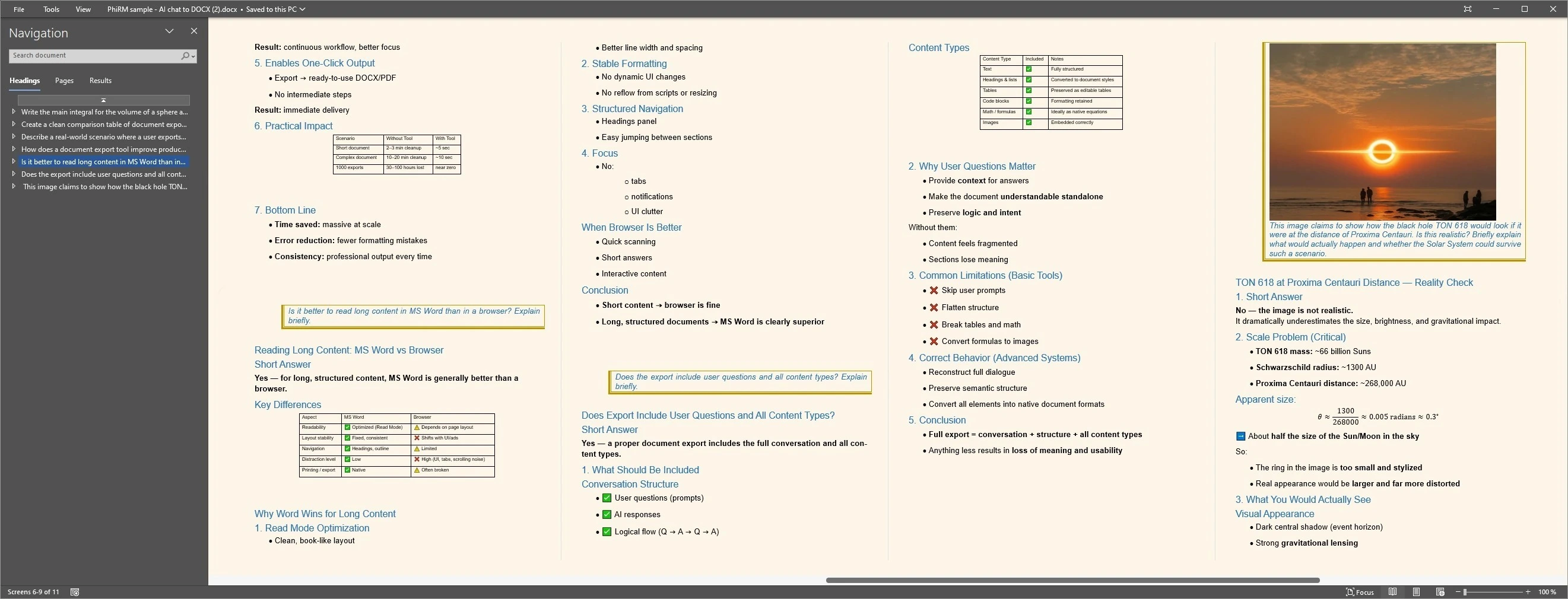
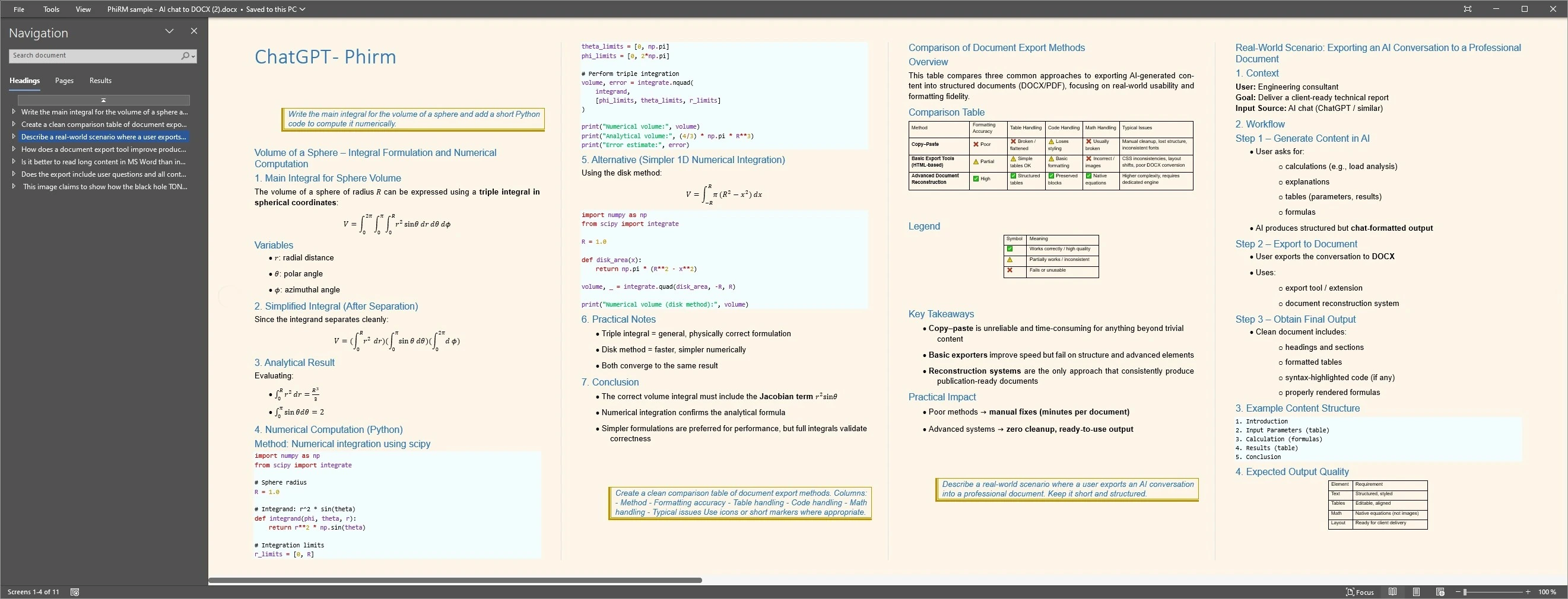
Example: from Gemini draft to Word document
A business analyst uses Google Gemini to draft a competitive analysis: structured sections, a comparison summary, key takeaways. Exporting to Google Docs and downloading as DOCX gets the content into Word, but headings and formatting still need adjustment before the document is ready to share. Copying directly is faster but messier.
PhiRM is designed for situations like this — where the Gemini output is not a one-off note, but the beginning of a document someone will edit, review, or sign off on.
Document workflow examples
FAQ
Can I export Google Gemini to Word?
Yes, there are several ways to get Gemini content into Word. You can copy Gemini responses manually into Word, export to Google Docs and then download as DOCX, or use PhiRM when a supported Gemini conversation needs a more direct Word document export. The right path depends on the document's length, structure, and how much formatting work you want to do manually.
How do I save a Gemini conversation as a Word document?
The most common approaches are copy-pasting the Gemini output into Microsoft Word, or routing through Google Docs (Gemini → Google Docs → Download as DOCX). For supported Gemini conversations that need to become a cleaner DOCX without relying on those extra steps, PhiRM offers a direct document export workflow. Results depend on the source content and supported features.
Is there a Gemini Word export option?
Google Gemini can export responses to Google Docs. From there, you can download the document as DOCX and open it in Microsoft Word. For a more direct supported export path to Word or DOCX — without the Google Docs intermediary step — PhiRM is designed to help with that workflow for supported Gemini conversations.
Does PhiRM work with Google Gemini?
Yes. PhiRM helps export supported Google Gemini conversations into Word or DOCX documents. PhiRM is designed to help preserve document structure during export, whether the source conversation is from ChatGPT or Gemini. Results may depend on the source content and which features are supported.
Is exporting Gemini to Google Docs the same as exporting to Word?
Not quite. Gemini can send responses to Google Docs, which works well when Google Docs is the final destination. When Microsoft Word or DOCX is the required format, there is usually an extra step — downloading the Google Doc as DOCX and then checking the formatting in Word. For supported Gemini content, PhiRM offers a more direct path to DOCX that skips the Google Docs intermediary step.
Does PhiRM also export Gemini conversations to PDF?
Yes. PhiRM supports DOCX and PDF export for supported AI conversations including Gemini. Word or DOCX is usually better when the document needs to be edited after export, while PDF is better for read-only sharing or archiving. See the related guide on Gemini to PDF for more on that workflow.
Ready to export Gemini output as a cleaner Word document?
PhiRM is designed to help export supported Gemini conversations into Word or DOCX documents when the final output needs to be editable, structured, and ready for review in Microsoft Word.