Document export
Gemini to PDF: export Google Gemini output as a PDF document
Short answer
Google Gemini offers a few paths toward a PDF. You can print the page from your browser, export a Gemini response to Google Docs and download it as a PDF, or copy the output into a document editor and export from there. For short, informal content or personal reference, those paths are often enough.
When the goal is a clean, professional PDF document — a client deliverable, a report, a finished analysis ready to be filed or sent — the common routes tend to introduce friction: the browser captures the conversation interface, Google Docs adds an intermediate step, and copy-paste often needs cleanup before the export is usable.
PhiRM is an AI chat exporter that helps export supported Google Gemini conversations into clean PDF documents for sharing, printing, archiving and professional delivery.
The Gemini to PDF problem
The core issue is that Gemini is a conversation interface, not a document editor. Getting its output into a clean PDF takes steps that each introduce their own friction.
Browser print / Save as PDF is the most direct path and also the least document-like result. The browser captures what it sees: the Gemini interface, the conversation layout, the response as rendered in the chat. For a personal note or quick archive, that may be fine. For something going to a client or stakeholder, it rarely looks like a document produced intentionally.
Gemini → Google Docs → Export as PDF is a more structured route. Gemini can export responses to Google Docs, and Google Docs can produce a PDF. But this is not a direct Gemini-to-PDF export — it is a Gemini-to-Google Docs-to-PDF workflow, with the intermediate step of checking and adjusting the Google Docs output before the PDF is ready. For shorter, simpler content this can be fast. For longer or more structured content — a multi-section report, a document with headings and tables — the resulting PDF may still need adjustment before it looks professional.
Copy-paste into a word processor, then print to PDF is the most common manual approach. It is also the most labor-intensive, because the paste step often loses heading structure, list formatting, and layout, and cleanup has to happen before the PDF export is even possible.
The result is a gap: Gemini produces useful, structured output, but getting that output into a clean PDF often costs more time and effort than the generation itself.
Simple options that may be enough
Before choosing a tool, it is worth knowing when the simple path holds up — and when it does not.
| Alternative | When it is enough | Where it falls short |
|---|---|---|
| Browser print / Save as PDF | Quick personal archive, informal note, one-off reference you keep for yourself. | Captures conversation UI; may not produce a clean document layout; not suitable for professional delivery. |
| Gemini → Google Docs → Export as PDF | When Google Docs is an acceptable intermediate step and the document is not complex. | Adds steps; structured content can still need formatting adjustment before the PDF is ready. |
| Copy-paste into Word or Docs, then export to PDF | Short plain-text responses, rough personal drafts. | Formatting and structure may be lost in the paste; manual cleanup needed before PDF export. |
| Screenshot | One short visual reference. | Not searchable, not a real document, not suitable for professional sharing or archiving. |
| Manual rebuild in a document editor | A single critical one-time document. | Slow and not scalable for repeated Gemini-to-PDF work. |
When simple methods stop being enough
The simple paths work well when the stakes are low: a personal archive, a rough note, something you will use yourself and nobody else will see.
They become a bottleneck when:
- The PDF is going to a client, colleague, or employer — and it needs to look like a finished document, not a browser screenshot.
- The content is structured enough that copy-paste cleanup takes longer than the Gemini session itself.
- You are doing this regularly — turning Gemini output into PDFs is part of your workflow, not a one-off task.
- The document is being archived or submitted and needs to stay in a stable, non-editable form.
- You want to avoid a Word or Google Docs intermediate step entirely, because PDF is the actual final format you need from the start.
At that point the question shifts from "can I get this into a PDF?" to "is there a more direct way to get there?"
Word vs PDF: which is right for Gemini output
This question matters because the answer shapes which tool and which path you need.
Choose PDF when the document is finished. PDF is generally treated as a fixed, read-only format. It is not the best format for normal collaborative editing. PDFs are for documents that are done — ready to be sent, submitted, filed, or archived. A PDF can sometimes be edited with specialized tools, but it is usually chosen when normal editing is no longer the main workflow. If the Gemini output is a finished deliverable — a report sent to a client, a summary attached to an email, a proposal ready for review — PDF is the right format. It signals that the document is complete. It generally helps keep layout more stable when someone else opens it on a different device or operating system.
Choose Word or DOCX when the document still needs work. Word documents are editable. If the Gemini output is a starting point rather than a finished product — a draft that needs track-changes review, a document that a colleague will refine, a report that your team will collaborate on before it goes out — Word or DOCX preserves that flexibility. You can reopen it, change headings, adjust sections, and export to PDF later when the work is actually done. See the Gemini to Word guide for that workflow.
The practical decision question is: who receives this, and what do they do with it? If the answer is "they read it, review it, and that is it" — PDF. If the answer is "they open it and continue working on it" — Word.
A common mistake is choosing Word by default when PDF is actually the goal, then treating the DOCX as a staging step before PDF export. If PDF is where you are heading, a workflow that produces PDF directly saves the intermediate editing pass.
How PhiRM helps with Gemini to PDF
PhiRM is designed to help produce a cleaner PDF from supported Gemini conversations without relying on browser print or a Google Docs intermediary step.
The goal is not to fix a broken copy-paste — PhiRM is not positioned as a cleanup tool for what ends up on a clipboard. The goal is to treat the Gemini conversation as the source of a document and export it directly as a PDF. For supported conversations, document structure is handled during export rather than added manually afterwards.
PhiRM helps export supported Google Gemini conversations into PDF documents for professional use. This is useful when the final goal is a PDF from the start: when the document is meant to be sent, not worked on further. This is not a guarantee of perfect output for every Gemini conversation. Results depend on the source content and which content types and features are supported. But the approach is different from printing a browser page or routing through Google Docs — it is a document export, not a workaround.
How the Gemini to PDF workflow works
- Start with the Gemini conversation or output you want to turn into a PDF document.
- Decide whether browser print or the Google Docs path is sufficient for the document's purpose and intended audience.
- Use PhiRM when the conversation needs to become a cleaner PDF document — particularly for professional delivery, client-facing documents, recurring exports, or structured content where layout matters.
- Review the exported PDF in a PDF viewer before sending, submitting, or filing it.
Who this is for and not for
This workflow is most relevant when individuals, teams, or companies use Google Gemini regularly to produce structured output — reports, summaries, analyses, plans, proposals — and the final destination for that output is a PDF document that will be shared, submitted, archived, or sent to someone who does not need to edit it.
It is also relevant when the browser print result is not clean enough for professional use, when the Google Docs intermediate step adds more time than the content warrants, or when you want a repeatable export workflow rather than a manual one.
It is less relevant when Gemini output goes into personal notes or rough working drafts, when Google Docs is the final destination and a PDF is not needed, when the content is short and plain enough that browser print or a quick paste is genuinely sufficient, or when the document still needs significant editing before it is finished — in which case Word or DOCX is the better starting point.
Limitations and accuracy
PhiRM helps export supported Gemini conversations into cleaner PDF documents. Not every Gemini conversation will export identically to how it appears in the chat. Results depend on the source content and which content types and features are supported by PhiRM at the time of export.
When Gemini output needs to become a finished read-only document rather than a draft, PhiRM is designed to help with that export workflow for supported conversations. For final professional documents — client deliverables, formal submissions, archived reports — reviewing the exported PDF before sending is still the right step. PhiRM can reduce manual formatting work; it is not a substitute for checking the output.
Example: turning Gemini output into a finished PDF
A research consultant uses Gemini to draft a competitive summary: a structured overview with a few key sections, findings, and conclusions. The client expects a PDF by end of day. Browser print captures the Gemini interface rather than a document. Exporting to Google Docs and cleaning up the formatting takes time the deadline does not allow.
PhiRM is designed for situations like this — when Gemini output needs to become a finished PDF document, not a draft that still needs a formatting pass before it is ready to send.
Document workflow examples
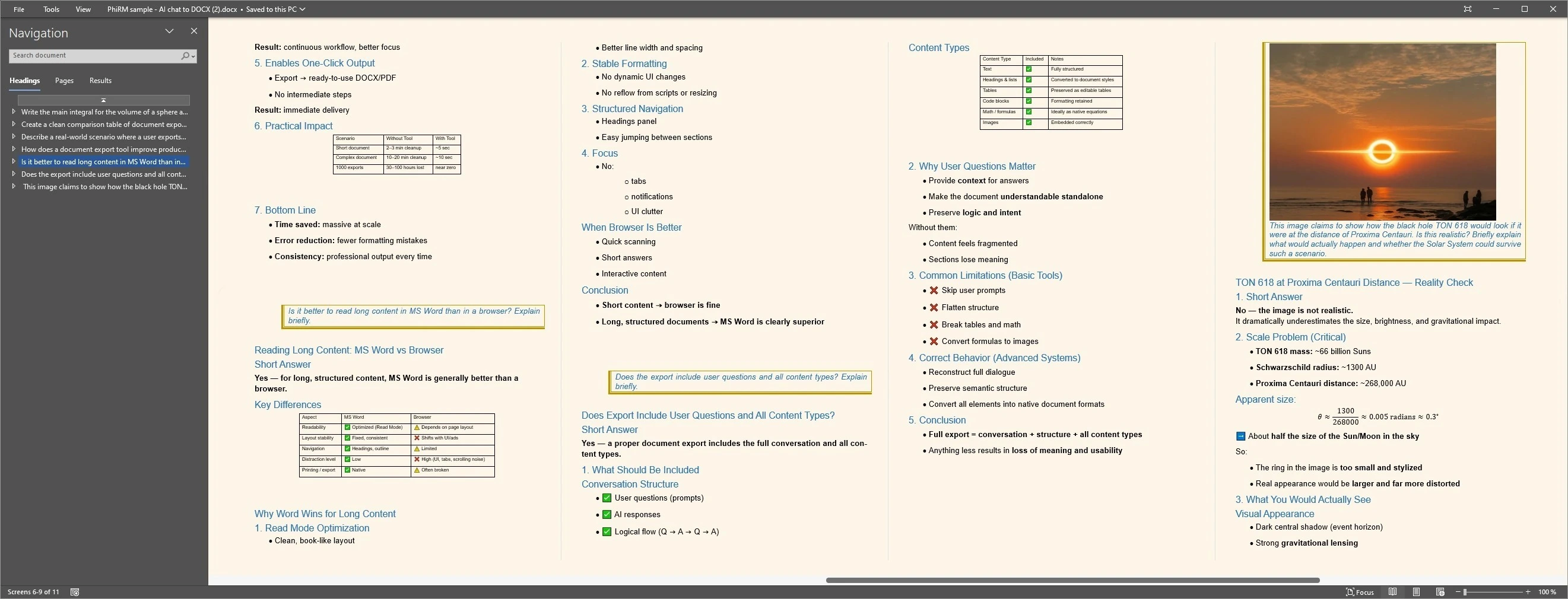
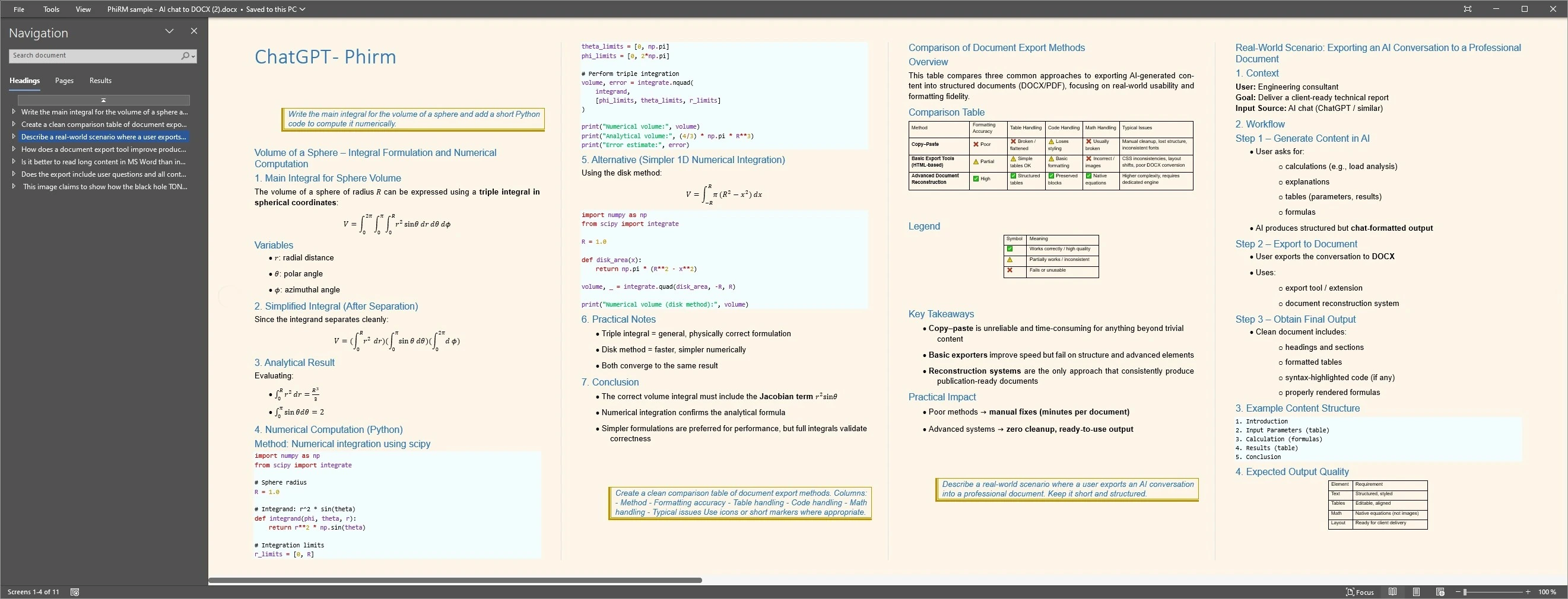
FAQ
Can I export Google Gemini to PDF?
Yes, there are several ways to get Gemini output into a PDF. Browser print / Save as PDF captures the current page view. Gemini can also export responses to Google Docs, which can then be downloaded as a PDF. For supported Gemini conversations that need a cleaner PDF document for professional use, PhiRM offers a more direct export path. The right approach depends on the document's purpose, length, and how polished the result needs to be.
How do I save a Gemini conversation as a PDF?
The most direct built-in option is browser print (Ctrl/Cmd+P, then Save as PDF), which captures the page as it appears in the browser. Alternatively, you can export a Gemini response to Google Docs and then download it as a PDF. For supported Gemini conversations that need a cleaner, document-oriented PDF — particularly for professional sharing or archiving — PhiRM offers a direct export workflow without relying on those intermediate steps. Results depend on the source content and supported features.
Is there a Gemini PDF export option?
Google Gemini can export responses to Google Docs, and from there you can download a PDF. For a direct export of a supported Gemini conversation to a PDF document — without the Google Docs intermediate step — PhiRM is designed to help with that workflow. The right path depends on the document's purpose and how much formatting work you are prepared to do manually.
Does PhiRM work with Google Gemini for PDF export?
Yes. PhiRM helps export supported Google Gemini conversations into PDF documents. PhiRM is designed to help preserve document structure during export, whether the source conversation is from ChatGPT or Gemini. Results may depend on the source content and which features are supported. PDF export is generally the right choice when the document is meant for read-only sharing, archiving, or professional delivery rather than further editing.
Should I export Gemini output to Word or PDF?
It depends on what happens to the document next. If the document needs to be edited, reviewed with tracked changes, or refined collaboratively, Word or DOCX is usually the better format — it preserves editability. If the document is finished and needs to be sent, submitted, archived, or shared as a read-only deliverable, PDF is usually the better choice. For supported Gemini conversations, PhiRM can export to either format depending on what the document will be used for. See the Gemini to Word guide if Word or DOCX is what you need.
Can I use Google Docs to make a PDF from Gemini output?
Yes. You can export a Gemini response to Google Docs and then download the document as a PDF via File → Download → PDF Document. This works well when Google Docs is an acceptable intermediate step and the content is not too complex. For structured or longer content, or when you want to skip the Google Docs step, PhiRM offers a more direct export path for supported Gemini conversations.
Ready to export Gemini output as a cleaner PDF document?
PhiRM is designed to help export supported Gemini conversations into PDF documents when the final output needs to be finished, shareable, and ready for professional use.